Account & settings
The Settings area allows you to review your school’s Pressburst subscription, manage users and update certain organisation details.
Open Settings in the main navigation to access the available sections.
Organisation
Open Settings → Organisation to view your school’s organisation information.
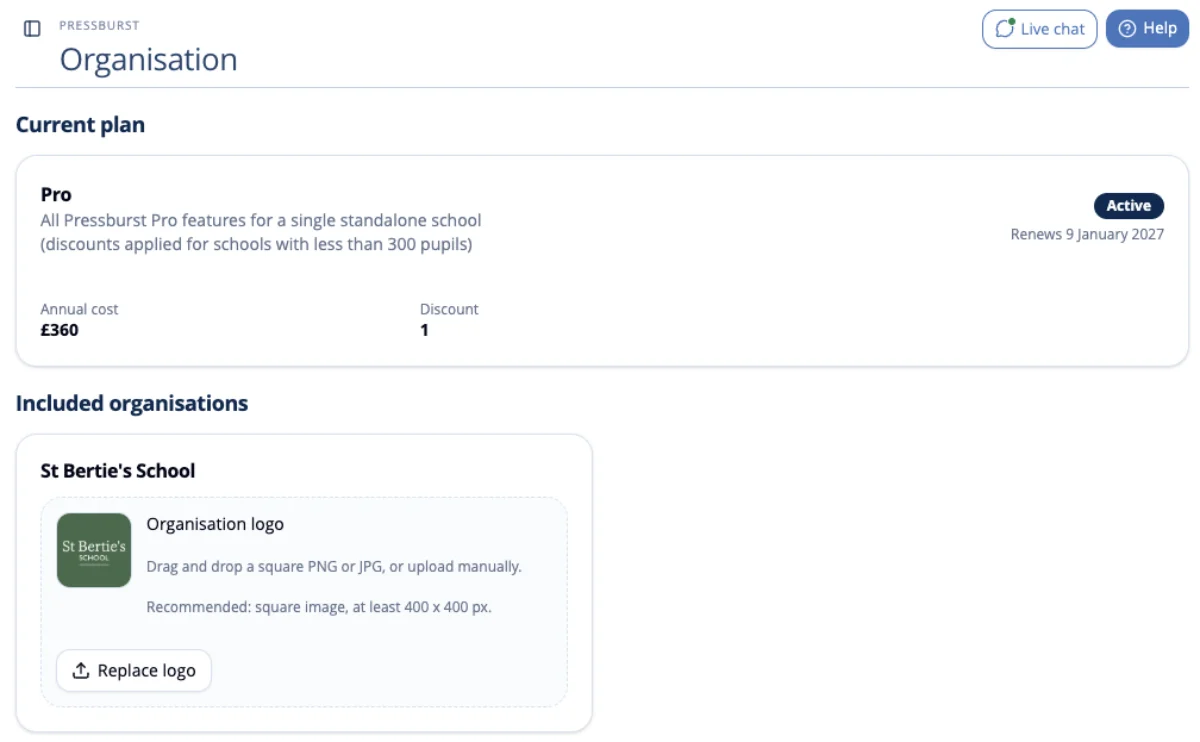
Current plan
The Current plan section displays your school’s Pressburst subscription.
Depending on your subscription, this may include:
- Your current plan and subscription status.
- Your subscription renewal date.
- Annual subscription cost and applicable discounts.
Included organisations
The Included organisations section shows the schools associated with your Pressburst account.
You can also upload or replace your school’s organisation logo.
Select Replace logo to upload a new image.
Billing & Plan
Open Settings → Billing & Plan to review your subscription and billing information.
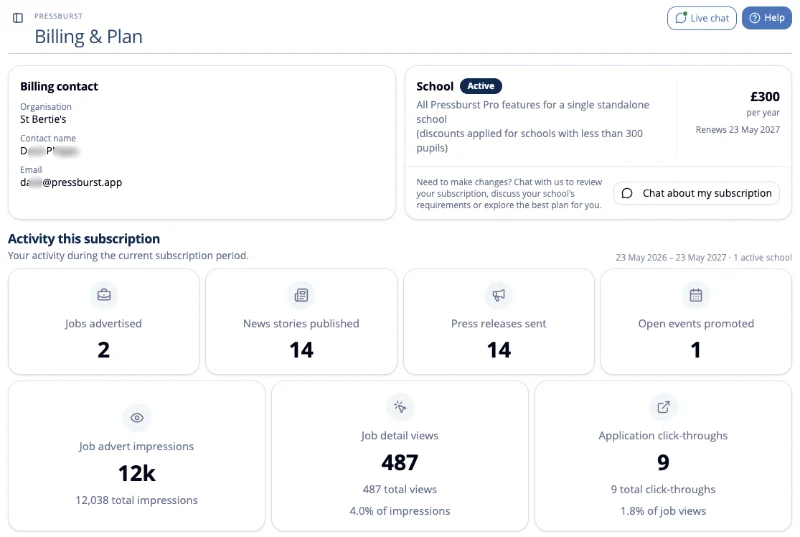
Subscription details
This section displays your current subscription, including its status, annual cost and renewal date.
You can also view the billing contact associated with your account.
If you need to discuss your subscription or make changes, select Chat about my subscription.
Subscription activity
The Activity this subscription section provides an overview of your school’s activity during the current subscription period.
Depending on your usage, this includes:
- Job vacancies advertised.
- News stories published.
- Press releases sent.
- Open events promoted.
- Job advertisement impressions.
- Job detail views.
- Application click-throughs.
These figures help you understand how your school has been using Pressburst.
Invoices
The Invoices section displays billing documents available for your subscription.
If no invoices are available, a message will be displayed.
Users
Open Settings → Users to view the people who have access to your school’s Pressburst account.
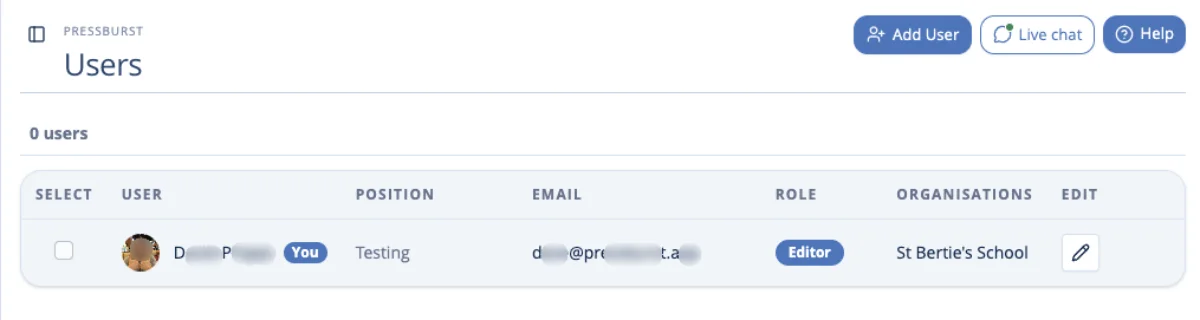
The Users page displays each user’s name, position, email address, role and associated organisations.
Add a user
Select Add User to add another person to your Pressburst account.
Complete the required details and assign the appropriate role and organisation access.
Edit a user
Select the pencil icon beside an existing user to update their details.
What’s New
Open Settings → What’s New to see the latest Pressburst updates.
The page displays information about recent releases, including:
- Version numbers and release dates.
- New features and improvements.
- Bug fixes and other changes.
The Latest release section highlights the most recent update, with previous updates listed under Recent releases.