
Managing photos
The Pressburst media library provides a central place to store and manage photographs used in your school’s news stories, job vacancies and other publishing content.
You can upload new photographs, edit their attribution details, crop images and check where existing photographs are being used.
Using photographs responsibly
Photographs are an important part of telling your school’s story, but publishing images of pupils requires particular care.
Before uploading or publishing a photograph, consider whether it is appropriate for public distribution and consistent with your school’s safeguarding, photography and data protection policies.
The Department for Education’s Keeping Children Safe in Education 2026 guidance emphasises that safeguarding is everyone’s responsibility and that decisions should be made in the best interests of children.
The Department for Education’s guidance on taking and using photographs also reminds schools to check any restrictions on identifying pupils before publishing images.
Having permission to use a photograph does not remove the need to consider whether publishing it is appropriate.
Consider the following
- Is the photograph necessary? Consider whether the story could be illustrated without prominently identifying individual pupils.
- Does your school have appropriate permission? Check your school’s photography permissions and any restrictions relating to individual pupils.
- Could the image identify or locate a child? Look for name badges, identifying information, location details or other potentially sensitive content.
- Where might the photograph appear? Images published through Pressburst may be distributed to association websites and other eligible partner platforms.
- Could another image tell the story? Photographs of activities, projects, facilities or wider groups may communicate the same message without focusing on individual faces.
Photography that tells the story
Effective school photography doesn’t always need to focus on pupils’ faces.
Consider using:
- Pupils engaged in activities, photographed from behind or from an appropriate distance.
- Close-ups of creative work, experiments, performances or sporting activities.
- Wider views of classrooms, facilities and school events.
- Photographs that highlight the activity or achievement rather than an identifiable individual.
- Staff, teaching environments and other aspects of school life.
These approaches can help communicate your school’s character while reducing unnecessary exposure of identifiable pupils.
Official safeguarding guidance
For more information, refer to the Department for Education’s official guidance:
Your school’s designated safeguarding lead or data protection lead should be consulted if you’re uncertain whether a photograph is appropriate for publication.
View your photos
Open Media → Photos from the main navigation.
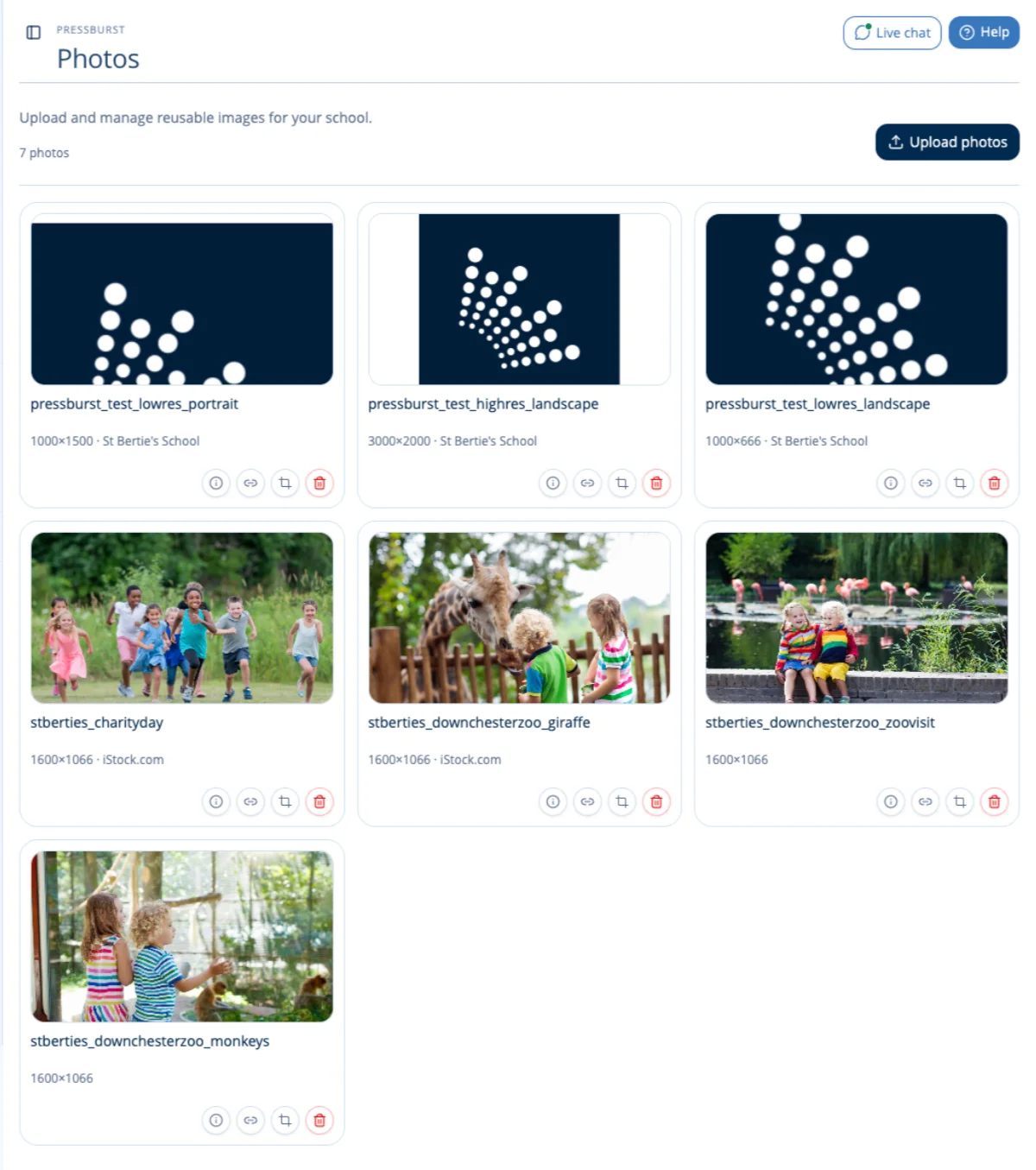
Your photographs are displayed in a grid, with each image showing its filename, dimensions and credit information where available.
Each photograph has four action buttons:
- Information – view or edit the photograph’s credit or attribution.
- Usage – check where the photograph is currently being used.
- Crop – adjust the photograph’s dimensions and composition.
- Delete – remove the photograph from your media library.
Upload photographs
Select Upload photos at the top of the Photos page.
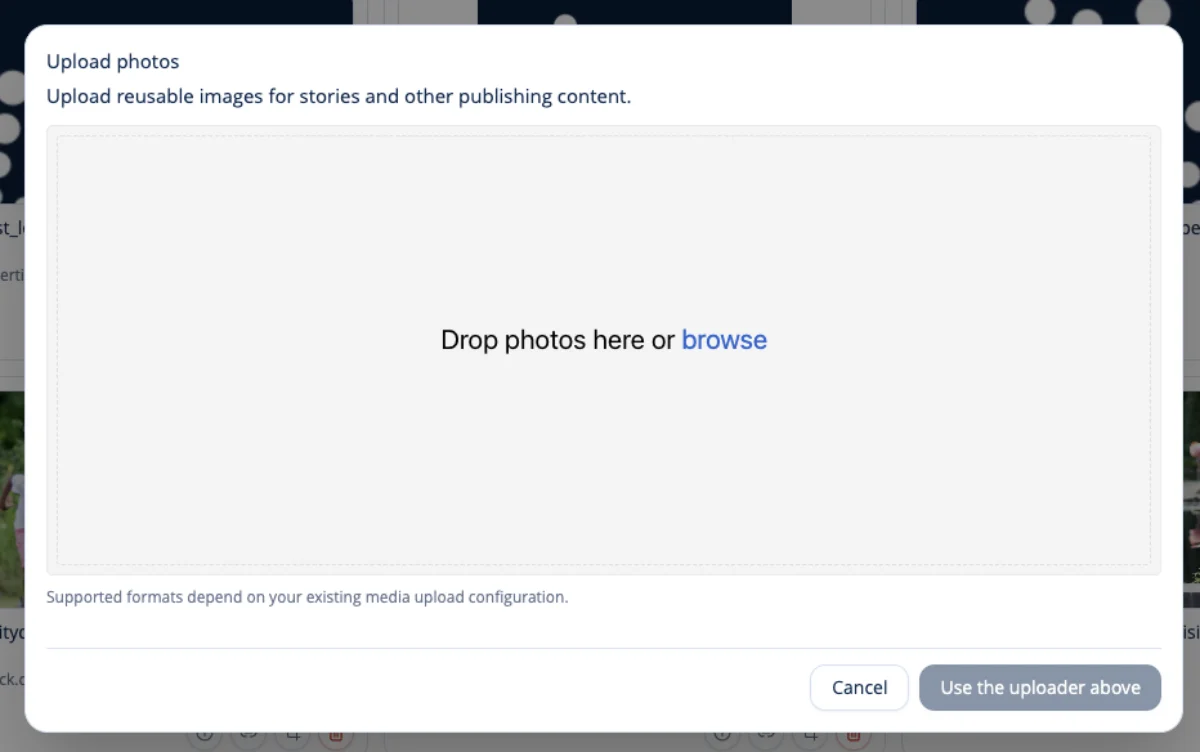
You can upload photographs by dragging them into the upload area or selecting browse to choose files from your device.
The photographs will be added to your media library, where they can be reused when creating content in Pressburst.
Edit photo information
Each photograph can have credit or attribution information associated with it.
Select the Information icon beneath the photograph.
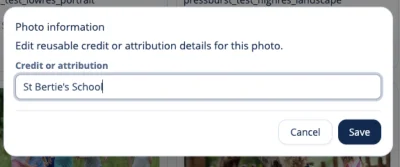
Enter or update the Credit or attribution field.
This might contain your school’s name, the photographer’s name or another appropriate credit.
Select Save to update the information.
Crop a photograph
Select the Crop icon beneath the photograph to open the image cropping tool.
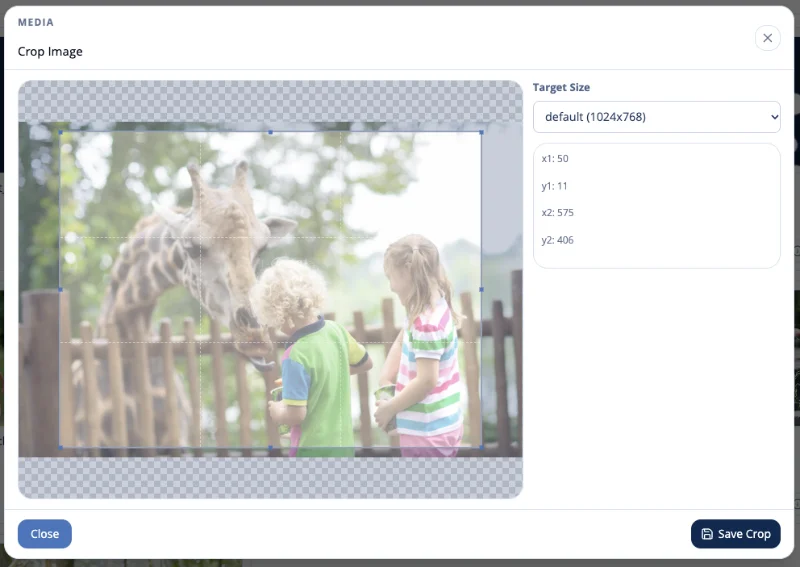
The cropping tool allows you to adjust the composition of a photograph for a particular image size.
You can:
- Select a Target Size from the available options.
- Drag the cropping area to reposition it.
- Adjust the cropping boundaries to include the required part of the image.
When you are satisfied with the result, select Save Crop.
Check where a photograph is used
Before removing a photograph, you may want to check whether it is currently being used elsewhere in Pressburst.
Select the Usage icon beneath the photograph.
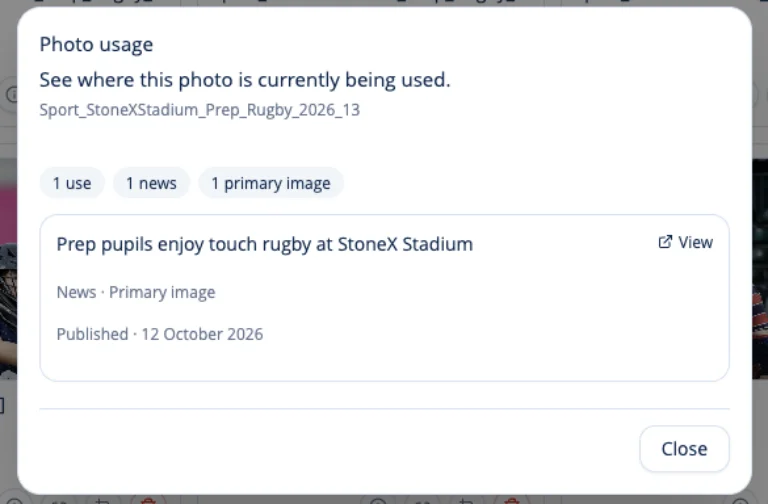
The Photo usage window shows whether the photograph is currently linked to any news stories or job vacancies.
If the photograph is not being used, Pressburst displays a message confirming this.
This is particularly useful when reviewing older photographs or tidying your media library.
Delete a photograph
To remove a photograph from your media library, select the red bin icon beneath the photograph.
Reusing photographs
Photographs uploaded to your media library can be selected when creating or editing content elsewhere in Pressburst.
Keeping your media library organised makes it easier to find suitable images without repeatedly uploading the same photographs.
For more information, see Creating and editing a news story or Creating and editing a vacancy.