
Creating an open event
Add your school’s open days and other admissions events to Pressburst.
Open events appear on your school’s profile and can be shared with eligible association and partner platforms, helping prospective families discover opportunities to visit your school.
Create a new event
Open Open Events from the main navigation.
Select Add Event and choose the school you are creating the event for.
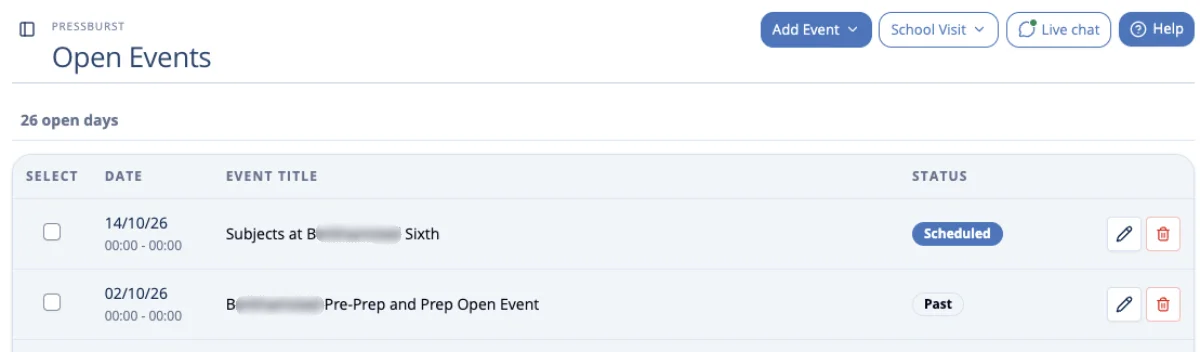
Pressburst opens the Create Open Event form.
Add the event details
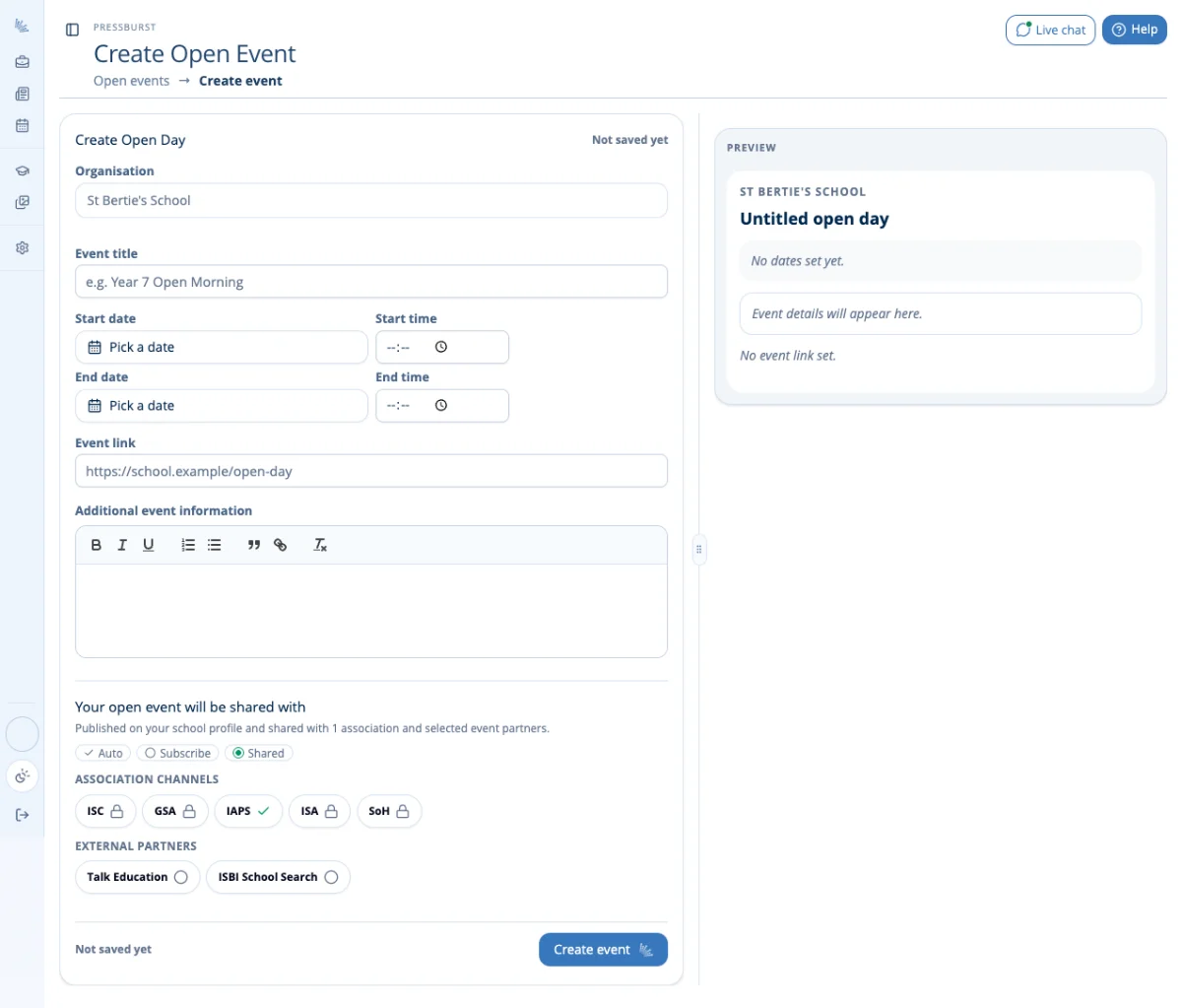
The event form allows you to enter your event information and preview how it will appear.
Event title
Enter a clear, descriptive title for your event.
For example:
- Open Morning
- Sixth Form Open Evening
- Prep School Open Day
Dates and times
Enter the Start date, Start time, End date and End time for your event.
These determine when the event takes place and are displayed alongside your event information.
Event link
Enter the URL of the relevant page on your school’s website where prospective families can find further information or book a place.
Where possible, link directly to the event or booking page rather than your school’s general homepage.
Additional event information
Use the text editor to provide further details about your event.
This might include:
- who the event is intended for
- what visitors can expect
- activities or presentations taking place
- arrival or parking information
- whether advance booking is required
Keep the information clear and useful for prospective families.
Preview your event
The Preview panel on the right shows how your event information will appear.
As you complete the form, the preview updates to reflect the details you have entered.
Review the title, dates, times, description and event link before creating the event.
Event distribution
The Your open event will be shared with section shows the distribution channels available to your school.
These include your school’s membership associations and external partners, where applicable.
Association channels
Your school’s eligible association channels are shown with a tick.
Channels displaying a lock icon are not currently available to your school.
External partners
External partners, such as Talk Education and ISBI School Search, are displayed separately.
Distribution to these partners depends on whether your school has an active subscription with the relevant provider.
- Selected partners – your school has access to distribution through that provider.
- Unselected partners – distribution is not currently available through that provider.
Select a partner’s name to display further information about the service and any subscription requirements.
Create the event
When you have completed the form and reviewed the information, select Create event.
Your event is created and will appear in the Open Events listing.
Import open events from another provider
If your school already manages open events using TryBooking or OpenApply, Pressburst can import your events directly, saving you from having to enter the same information twice.
Connecting your provider
To enable importing, you’ll need to generate an API key from your existing event provider.
- Sign in to your TryBooking or OpenApply administration area.
- Locate the API or integration settings and generate an API key.
- Provide the API key to Pressburst so your account can be connected.
- Once connected, Pressburst can retrieve your open events directly from the provider.
Importing your events
Once your provider has been connected, Pressburst can import your open events without you needing to create each one manually.
Imported events appear alongside your manually created events in the Open Events listing and can be shared with your school’s eligible association and distribution partners.
Update an event
You can return to an existing event to update its details.
The editing screen uses the same form and Preview as the creation workflow.
See Managing open events for more information.