
Managing open events
Use the Open Events area to view and manage the admissions events your school has added to Pressburst.
Open Open Events from the main navigation to see your events.
View your events
The Open Events page provides a list of the events associated with your school.
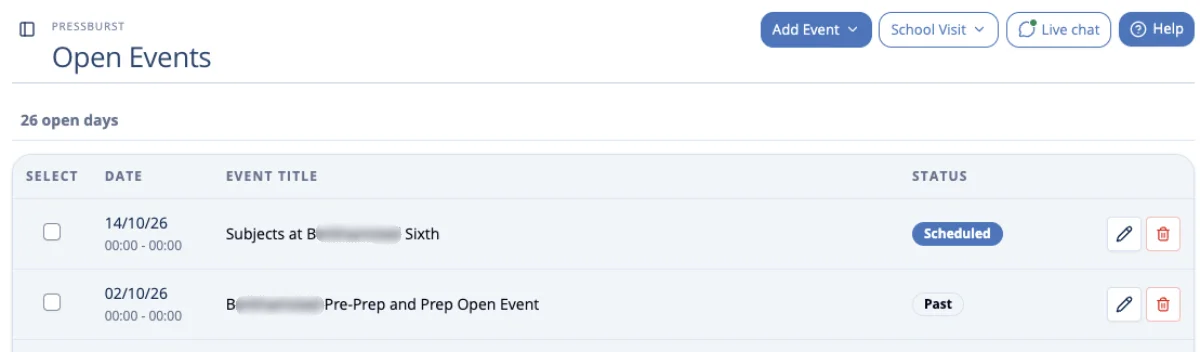
Each event displays its date, title and status:
- Scheduled – an upcoming event.
- Past – an event that has already taken place.
Use the pencil icon beside an event to open it for editing.
Edit an event
Open Open Events and select the pencil icon beside the event you want to update.
The Update Open Event form opens with the existing event information.
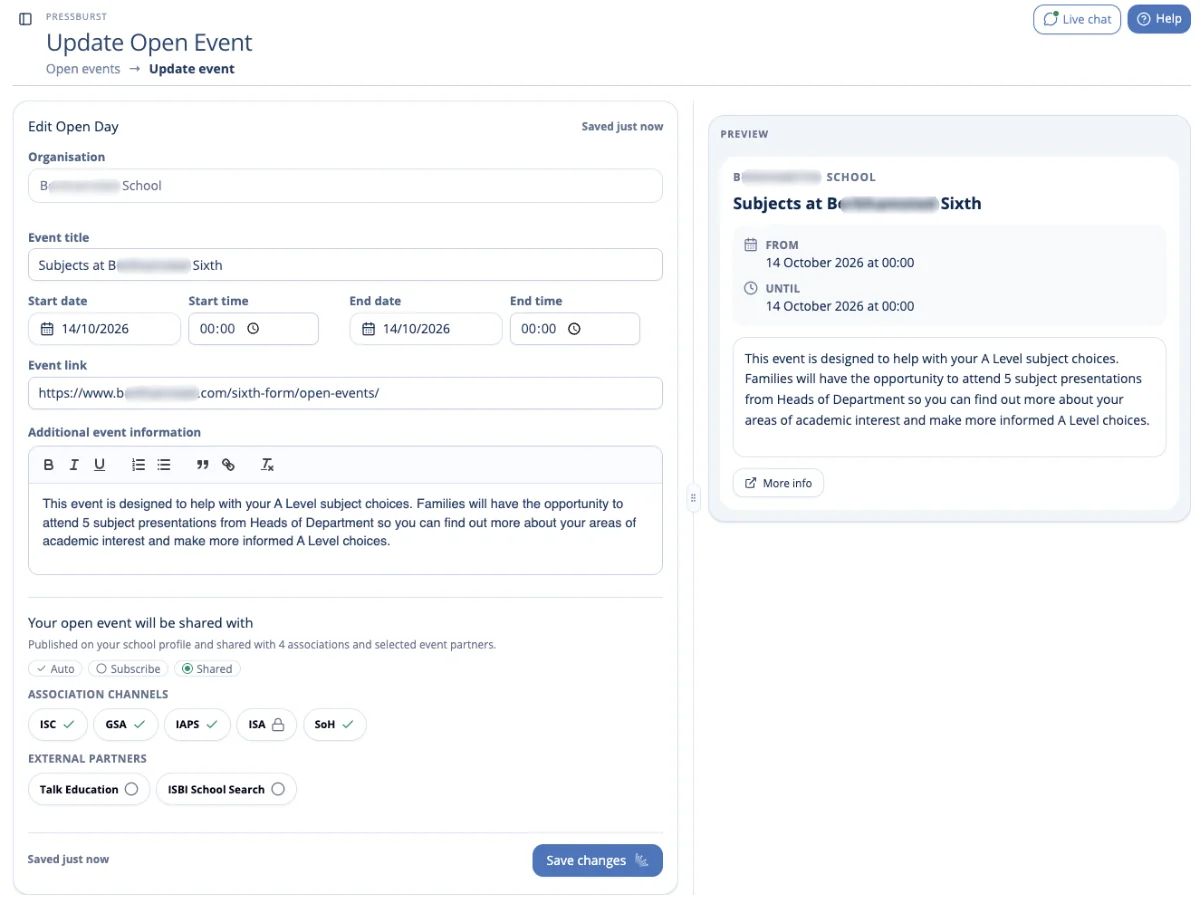
You can update the event title, dates, times, booking link and additional information.
The Preview on the right updates as you make changes, allowing you to check how the event will appear.
When you have finished, select Save changes.
Previous events
Previous events remain useful as a record of the open events your school has created.
When creating a new event, create a new event rather than changing the date and details of an unrelated previous event.
Create another event
To add a new open day or admissions event, select Add Event.
See Creating an open event for more information.