Creating a press release
Press releases in Pressburst are created from your school’s published news stories.
This means you can use an existing story as the starting point for a press release without having to enter the same information again.
There are two ways to prepare a press release.
Option 1: After publishing a news story
When publishing a news story, you can choose to prepare a press release as part of the publishing workflow.
Once the story has been published, Pressburst opens the press release editor with the story’s details already filled in.
You can then review and edit the content before preparing it for distribution.
For more information about publishing news, see Creating and editing a news story.
Option 2: From a published news story
You can also prepare a press release from a story that has already been published.
Open News → Stories.
Find the published story you want to use and select Prepare Press Release.
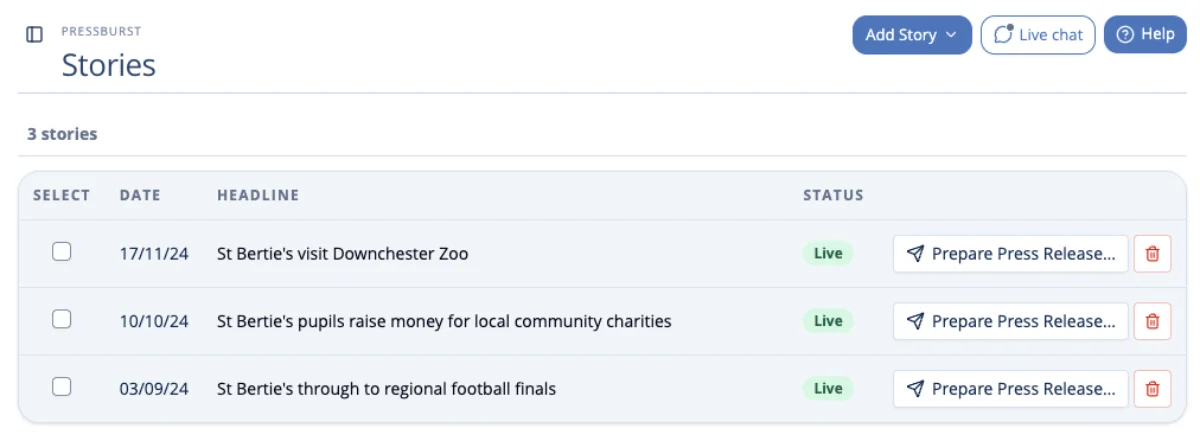
Pressburst opens the press release editor with the story’s details already filled in.
Edit your press release
The press release editor opens with information from your published news story already filled in.
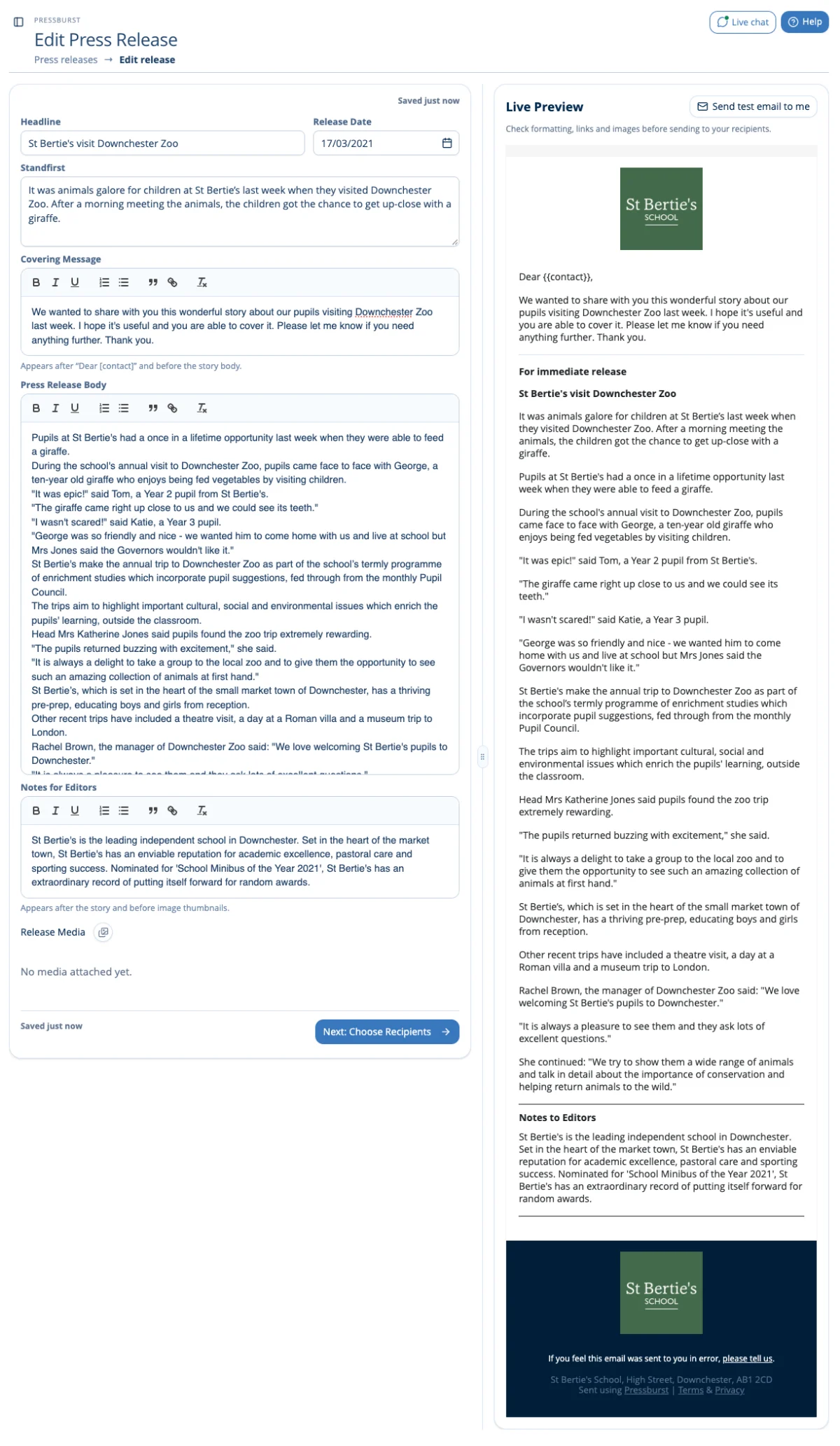
You can review and update the following fields:
Headline and release date
Check the headline and select the date for your press release.
Summary
The summary provides a short introduction to your press release, highlighting the most important information.
This is initially taken from your published news story, but you can edit it to make it more suitable for journalists.
Covering message
Add a short message introducing the release to journalists.
This appears after the personalised greeting and before the main press release.
Press release body
Review and edit the main content of your press release.
The content is initially taken from your published news story, but you can adapt it to make it more suitable for journalists.
Notes for Editors
Use this section to provide background information about your school that may be useful to journalists.
This might include a short description of your school, its location or other relevant information.
Release media
You can attach media to accompany your press release.
Include relevant photographs or other images that may be useful to journalists covering the story.
Preview your press release
The Live Preview on the right shows how your press release will appear when received by journalists.
As you edit the release, the preview updates to reflect your changes.
Review the layout, content and formatting carefully.
Send a test email
Before distributing your press release, you can send a test copy to yourself.
Select Send test email to me above the Live Preview.
Pressburst sends the press release to your own email address so you can check how it appears in an email client.
Save your work
Changes to your press release are saved automatically.
You can return to an unfinished release at any time from News → Draft Releases.
Continue to distribution
When your press release is ready, select Next: Choose Recipients.
This opens the recipient selection page, where you can choose the journalists and media contacts who should receive your release.
See Sending a press release for the next step.