
Sending a press release
Once you have prepared and reviewed your press release, the next step is to choose the journalists and media contacts who should receive it.
Pressburst allows you to select individual contacts or use audience groups to build your distribution list.
Choose your recipients
From the press release editor, select Next: Choose Recipients.
This opens the recipient selection page.
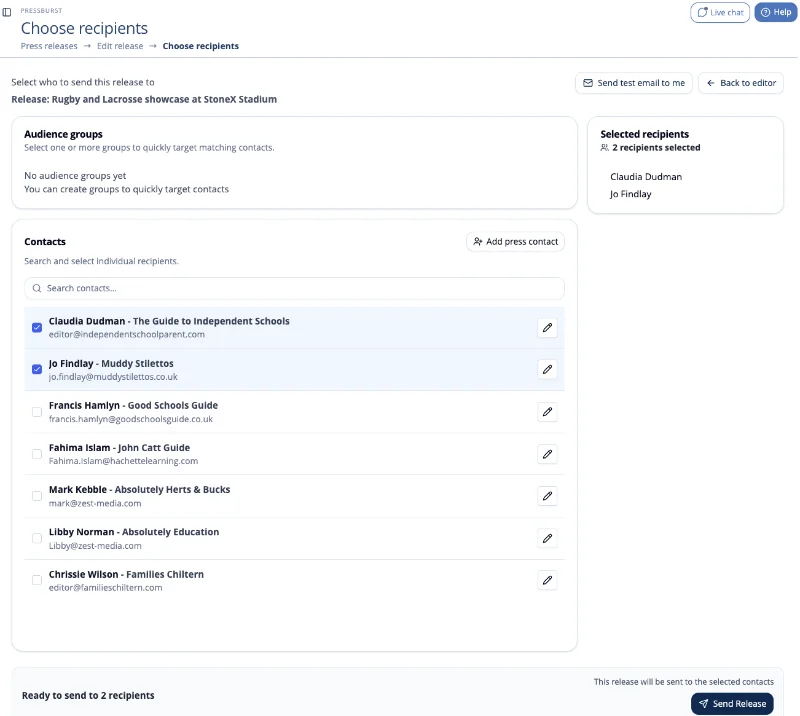
The page contains three main areas:
- Audience groups – select groups of contacts to include in your distribution.
- Contacts – search for and select individual journalists and media contacts.
- Selected recipients – review the recipients included in your distribution.
Select audience groups
Audience groups allow you to select multiple contacts together.
If you have created audience groups, select the groups relevant to your press release.
This is particularly useful when regularly distributing releases to similar groups of journalists.
Select individual contacts
The Contacts section allows you to find and select individual recipients.
Use the search field to locate a particular journalist or media contact.
Select the contacts you want to include in your distribution.
Add a new press contact
If the journalist you want to contact is not already in your list, select Add press contact.
You can add the contact without leaving the recipient selection workflow.
For more information about maintaining your contacts, see Managing press contacts.
Review your recipients
The Selected recipients panel shows the contacts included in your distribution.
Review this list carefully before sending.
You can return to the press release editor using Back to editor if you need to make changes to the content.
Send a test email
You can send yourself a test copy of the press release directly from the recipient selection page.
Select Send test email to me.
Pressburst sends the release to your own email address, allowing you to check the content and formatting before sending it to journalists.
Send your press release
When you are satisfied with the release and have selected your recipients, select Send Release.
The button is only available once you have selected recipients.
After sending
Once distributed, your press release moves from News → Draft Releases to News → Sent Releases.
You can return to Sent Releases to view your previously distributed press releases.
See Managing press releases for more information.