
Creating a vacancy from a job description
If you already have a job description, Pressburst can use it to extract key information and help you create your vacancy.
This can save time re-entering information that already exists in a document or on your school’s website.
Start a new vacancy
Open HR and select Vacancies.
Click Add Job and select the school you are recruiting for.
Pressburst opens the vacancy form. Select Create from Job Description to open the job description tool.

Add your job description
You can provide the existing job description in one of two ways:
- enter the web address of a job description or vacancy page
- upload a job description document
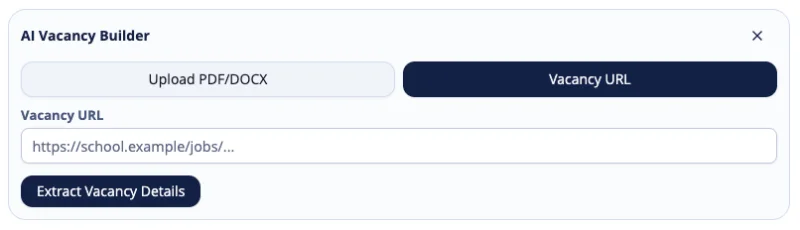
From a web page
Enter the URL of the page containing the job description and ask Pressburst to process it.
This could be an existing vacancy page on your school’s website, a job listing on an external recruitment platform, or a vacancy page within your school’s Applicant Tracking System (ATS).
Pressburst will use the information on the page to create a draft vacancy for you to review and edit.
From a document
Upload the job description from your computer.
Use the original job description where possible so Pressburst has enough information to identify the important details about the vacancy.
Extract the vacancy details
Pressburst analyses the job description and identifies information that can be used in your vacancy.
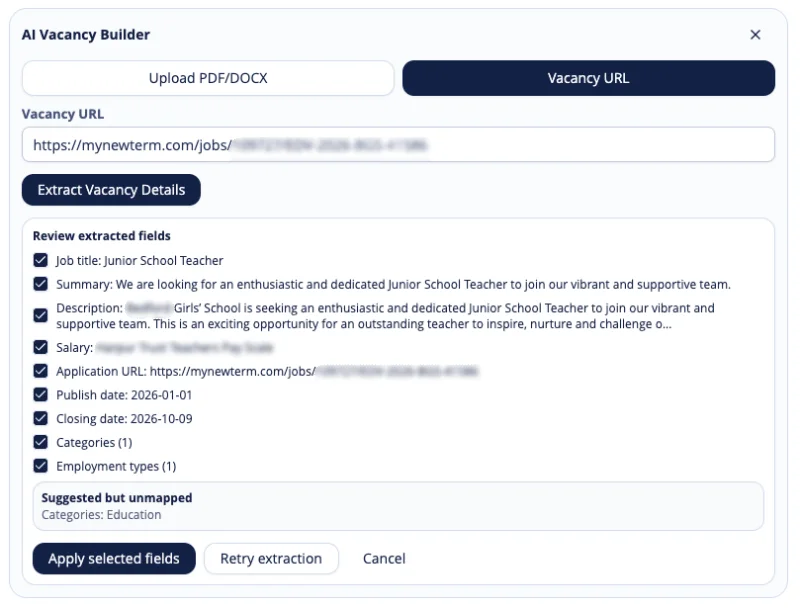
Review the information Pressburst has extracted before applying it to the vacancy.
Apply the information
When you are happy with the extracted information, apply it to the vacancy.
Pressburst adds the selected information to the vacancy form, where you can continue editing and complete any remaining fields.
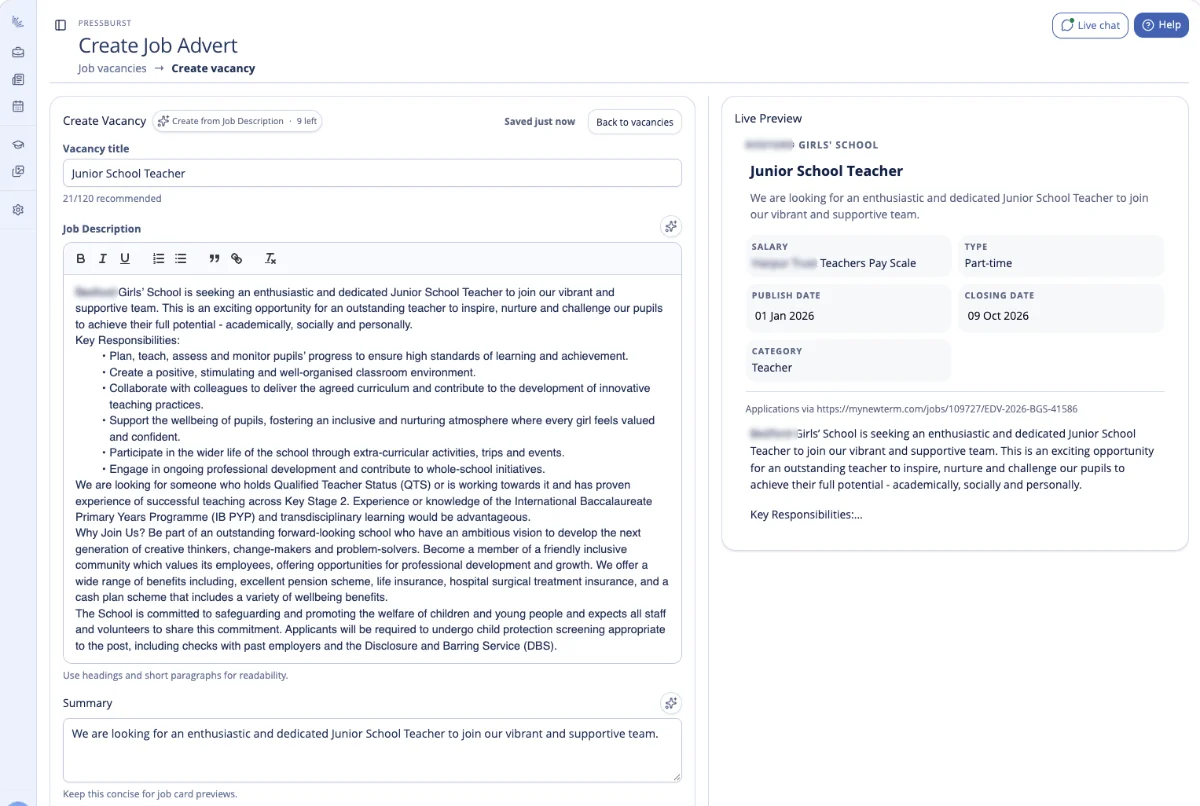
Check the vacancy carefully and add any information that was not available in the original job description.
You can also use the Live Preview to check how the vacancy will appear to candidates.
Complete and publish the vacancy
Once the information has been added, the vacancy uses the normal Pressburst creation workflow.
You can:
- edit the job description
- add or generate a summary
- complete salary and publication details
- add application information and documents
- choose the vacancy image
- review distribution and visibility
- preview and publish the vacancy
See Creating and editing a vacancy for the full vacancy workflow.