
Managing vacancies
Use the Vacancies area to view and manage your school’s current, draft and previous job vacancies.
View your vacancies
Open HR and select Vacancies.
The Vacancies page gives you an overview of the vacancies available for your school.
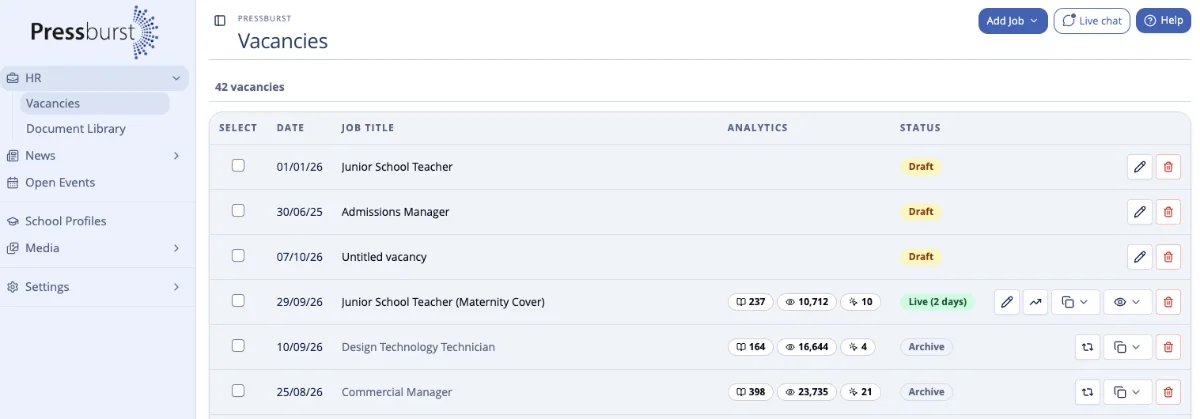
From here you can see the status of your vacancies and open an individual vacancy to view or manage it.
If you have access to more than one school, make sure you are viewing the correct organisation.
Vacancy status
The status of a vacancy helps you see where it is in its lifecycle.
Depending on the vacancy, you may see statuses for vacancies that are:
- drafts
- scheduled for publication
- currently live
- closed or expired
Quickly manage a vacancy
You can change the closing date of a live vacancy directly from the Vacancies page, without opening the full vacancy editor.
Click the Live status badge alongside the vacancy to open the Vacancy status popover.
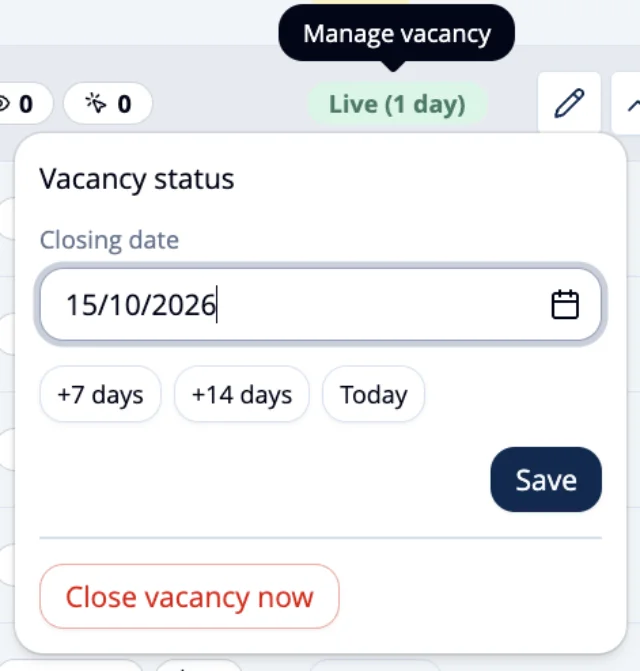
From here, you can:
- Change the closing date: Select a new date using the date picker.
- Extend the closing date: Use +7 days or +14 days to quickly extend the vacancy.
- Set the closing date to today: Select Today to use the current date.
Once you have selected the required date, click Save to update the vacancy.
You can also select Close vacancy now to close the vacancy immediately, without changing its closing date.
Open a vacancy
Select a vacancy from the list to open it.
For a vacancy created directly in Pressburst, you can review and update its details using the same form used when the vacancy was created.
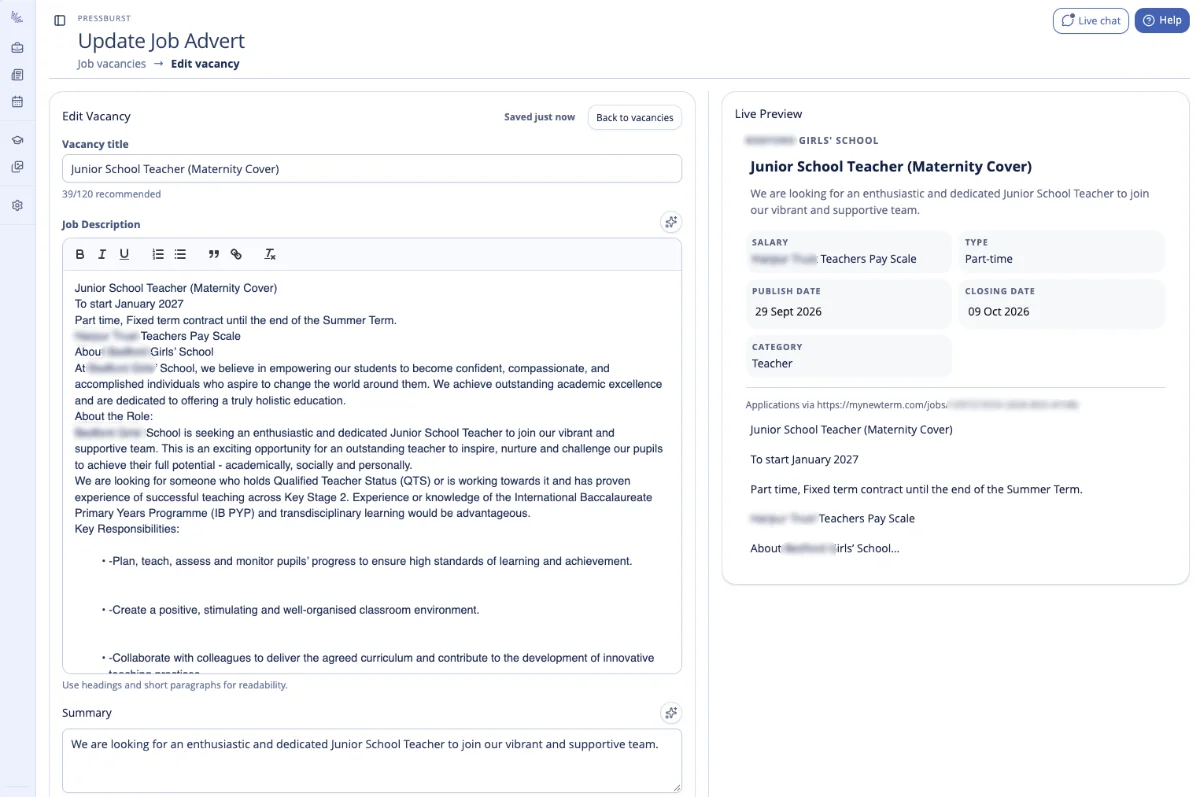
The Live Preview allows you to check how the vacancy appears while you make changes.
For more information about the vacancy form, see Creating and editing a vacancy.
Edit a published vacancy
Open the vacancy you want to change and make the required amendments.
Depending on the change, you may need to publish the vacancy again for the updated information to be distributed.
View vacancy performance
Pressburst records activity for your published vacancies so you can see how they are performing.
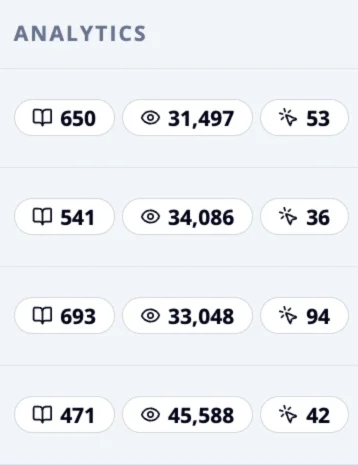
Performance information can include:
- Impressions – the number of times the vacancy has been displayed.
- Views – the number of times people have opened the vacancy.
- Apply – the number of times people have clicked through to apply.
Where available, Pressburst also shows how activity is distributed across the channels carrying your vacancy.
Close a vacancy
When you no longer want a vacancy to remain live, open the vacancy and use the available option to close it.

Closing a vacancy removes it from active publication through Pressburst and its available distribution channels.
You may want to close a vacancy early if, for example, sufficient applications have been received or the position is no longer available.
Previous vacancies
Previous vacancies remain available in Pressburst so you can refer back to roles that are no longer live.

This provides a record of vacancies your school has advertised and allows you to review their details and performance after they have closed.