
Using Story Builder
Story Builder helps you create a first draft of a news story by asking for the key information you want the story to contain.
Rather than starting with a blank page, add the important facts, quotes and any additional guidance. Pressburst then uses this information to create a draft story for you to review and edit.
Open Story Builder
Open News and select Stories.
Click Add Story, select the school you are publishing for and then choose Create with Story Builder.
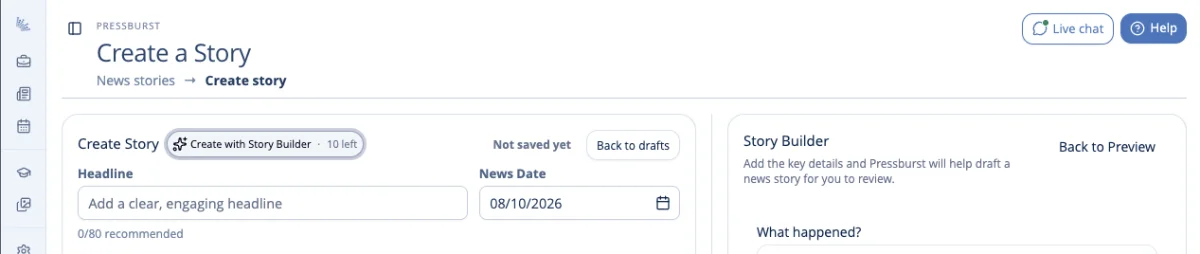
The Live Preview panel is replaced by Story Builder while you create your draft.
Add the story details
Start by giving Story Builder the essential information you want the story to contain.
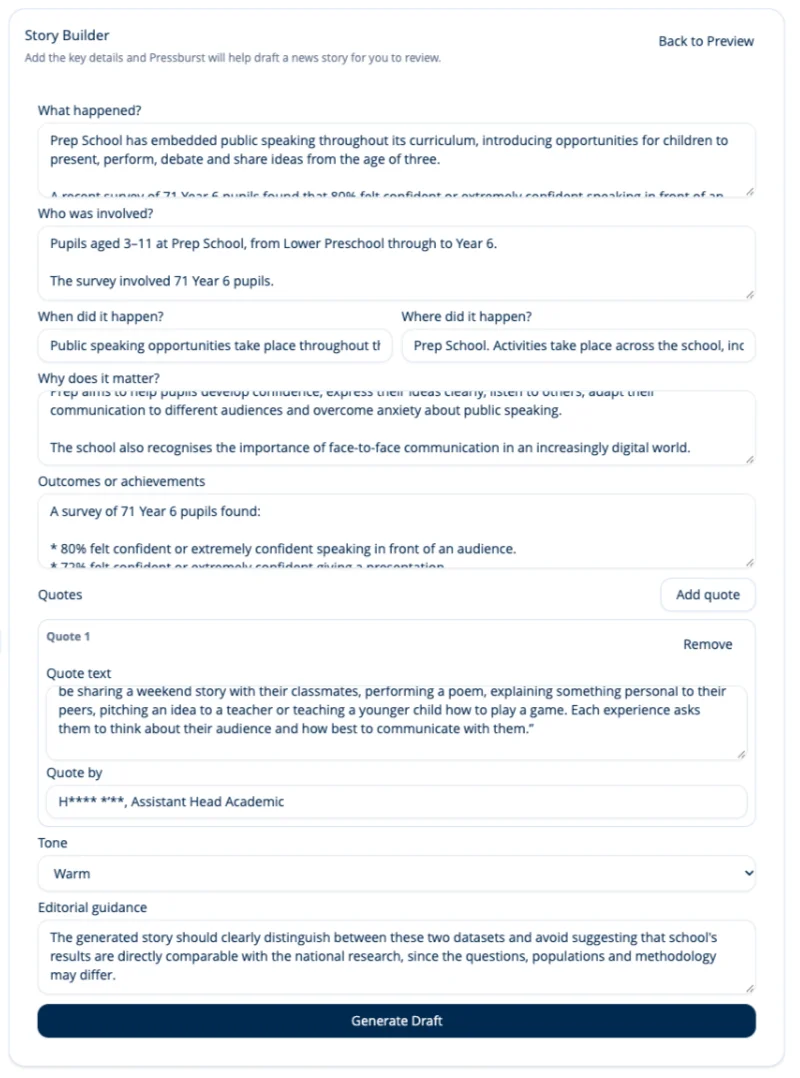
Key facts
Story Builder uses the 5Ws to help you think about the information a reader is likely to need:
- Who – the people, pupils, teams or organisations involved.
- What – what happened or what has been achieved.
- Where – where it happened.
- When – when it happened.
- Why – why it happened or why it is significant.
You don’t need to write polished copy at this stage. Concentrate on giving Story Builder accurate and useful information.
Quotes
Add any quotes that you would like Story Builder to include in the story, together with enough information to identify the person being quoted.
Quotes can help make school news more personal and give pupils, staff or others involved in the story a voice.
Tone
Choose the tone you would like Story Builder to use when writing the draft.
Select the option that best suits the story and the way your school normally communicates. You can still change the wording after the draft has been generated.
Editorial guidance
Use the editorial guidance field for anything else you would like Story Builder to consider.
For example, you might want to:
- emphasise a particular achievement
- explain why something is significant
- mention an important aspect of school life
- ask for particular information to be included or avoided
- provide context that doesn’t fit naturally within the 5Ws
Editorial guidance is optional.
Generate your draft
When you have provided the information you want Story Builder to use, select Generate Draft at the bottom of the story builder.
While Pressburst is generating the story, the button changes to Creating your draft.
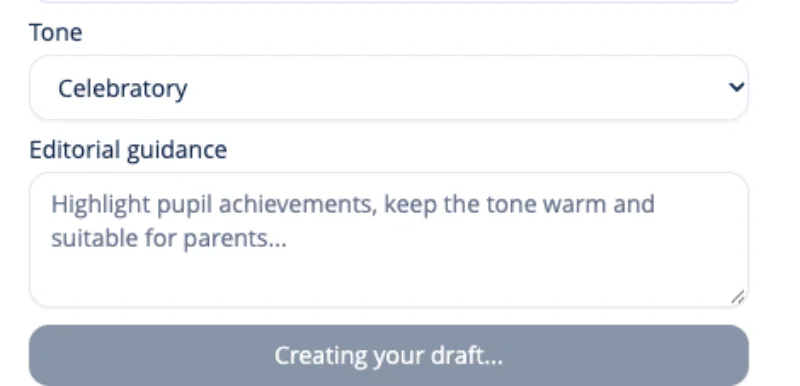
Story Builder uses the information you provided to produce a suggested headline and story.
Review the generated story
Review the generated draft before deciding what to do with it.
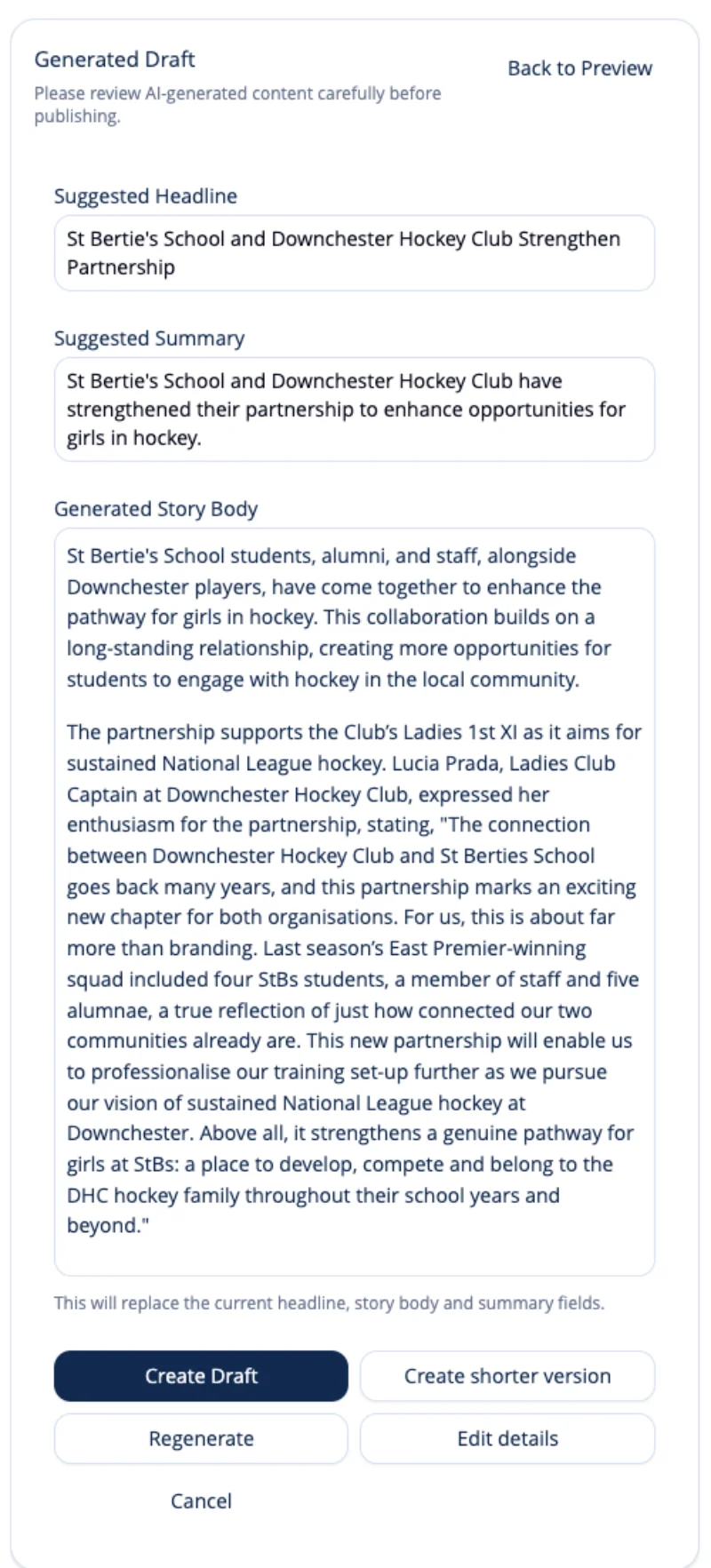
You have several options:
- Create Draft – use the generated content to create your news story.
- Create shorter version – ask Story Builder to produce a more concise version.
- Regenerate – create another version using the information you provided.
- Edit details – return to the Story Builder form and change the information or guidance before generating another draft.
- Cancel – leave Story Builder without using the generated draft.
Create your news story
When you are happy with the generated content, select Create Draft.
The headline and story are copied into the main news story form as a draft.
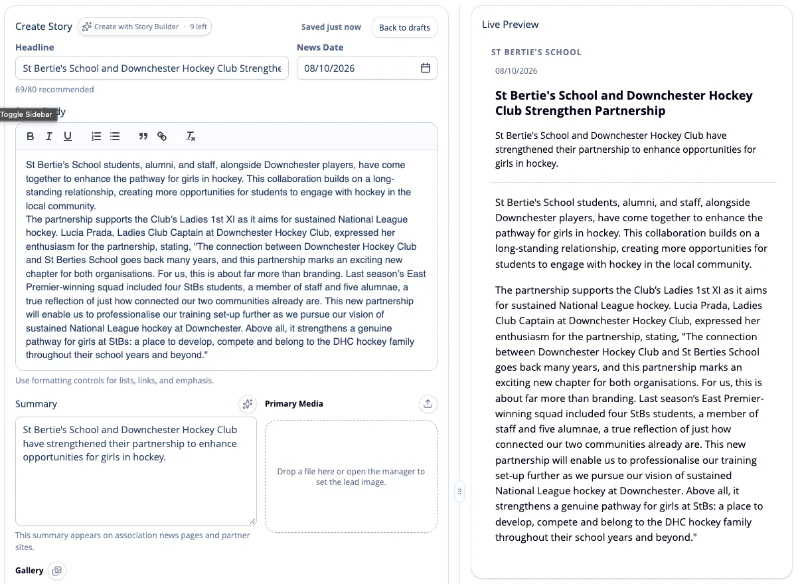
You can now edit the generated content in exactly the same way as a story you entered manually.
Review the draft carefully, particularly:
- names and job titles
- dates and locations
- results, figures and other factual details
- quotes and their attribution
- the overall tone and wording
You can then complete the remaining story details, choose your image, review your distribution options and preview the finished story.
See Creating and editing a news story for the full publishing workflow.