
Managing news stories
Use the News area to view and manage your school’s draft and published news stories.
View your stories
Open News and select Stories.
The Stories page shows the news stories that have been published for your school.
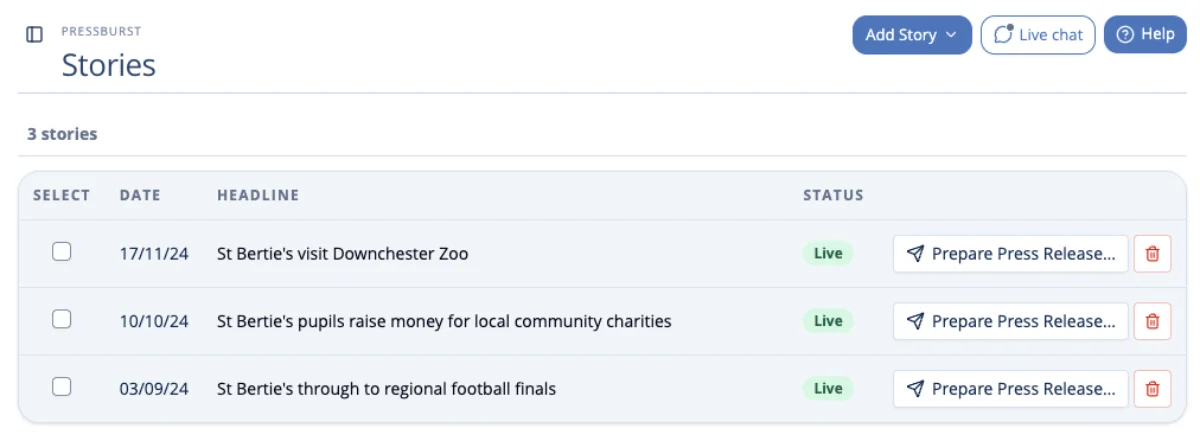
From here you can open a story to view its details or make changes.
If you have access to more than one school, make sure you are viewing the correct organisation.
View your drafts
Open News and select Drafts to see stories that have been started but not yet published.
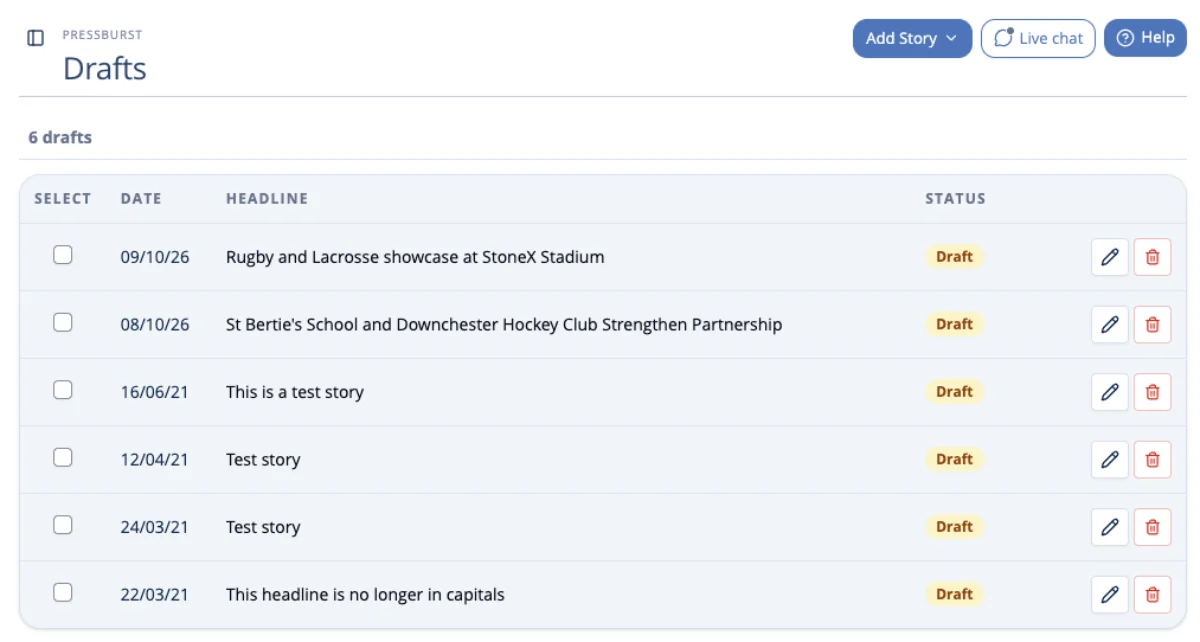
Select a draft to continue working on it.
The story opens in the standard news editor, where you can complete the content, add an image, review the distribution options and preview the finished story.
Edit a published story
Open News → Stories and select the story you want to edit.
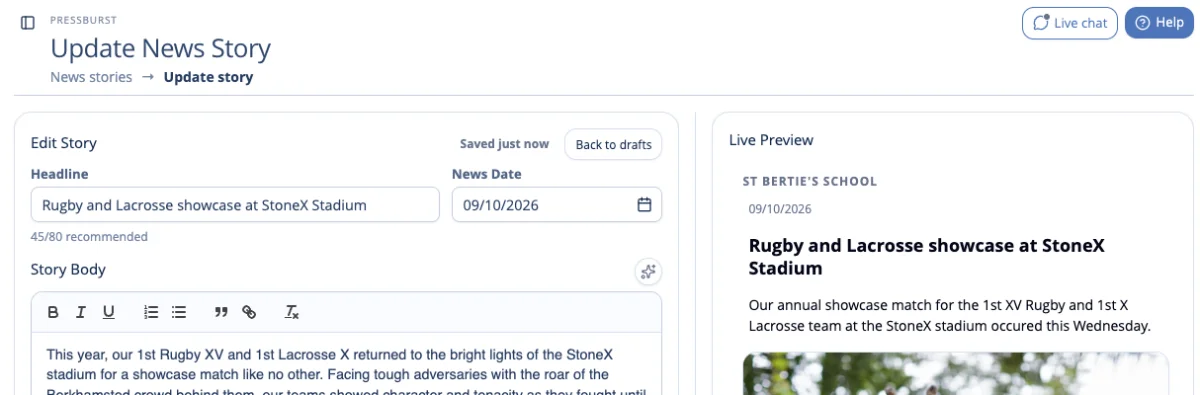
The editing screen uses the same form and Live Preview as the story creation workflow.
Make the required changes and select Save Changes to save your updates.
You can also select Create a Press Release to prepare a draft press release using the published story.
For more information about editing and saving published stories, see Creating and editing a news story.
Prepare a press release from a story
A published news story can be used as the starting point for a press release.
From News → Stories, find the story you want to use and select Prepare Press Release.
Pressburst uses the story content to create a new draft press release, saving you from having to enter the same content again.
You can then review and edit the release before choosing your press contacts and sending it.
See Creating a press release for the full press release workflow.
Check where a story has been shared
Pressburst can distribute your news to the association and partner websites available to your school.
Open a published story to see its distribution information.
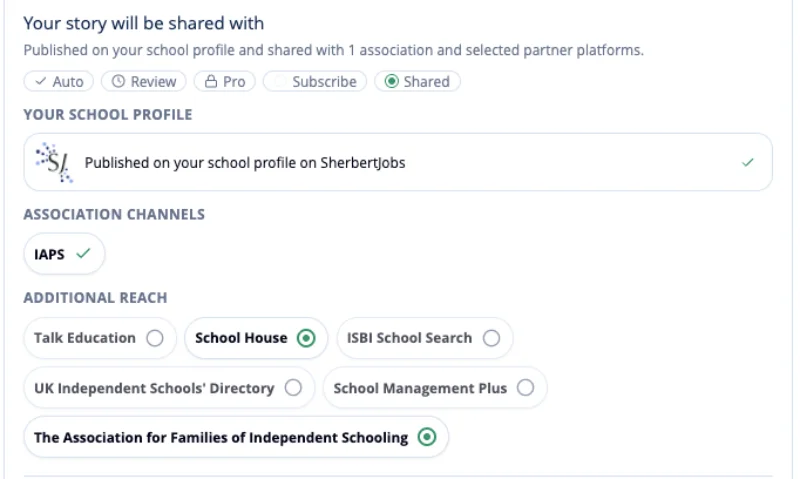
The destinations available depend on your school’s memberships, Pressburst plan and connected news partners.
These may include your school’s membership association and Pressburst news partners such as Talk Education and ISBI School Search, where available.
Make changes after publishing
If you notice a mistake or need to update information after a story has been published, open the story and make the required changes.
Check the updated story carefully before completing the update.
Continue creating news
You can create another story at any time from News → Stories.
See Creating and editing a news story for the standard workflow, or Using Story Builder if you would like Pressburst to help turn your key facts into a first draft.